
We all use Photoshop on a daily basis, but I bet there’s at least one tip in this post that will give you the old ‘Why didn’t I know of this before’ moment! It’s tips like these that make the most common of tasks quicker and easier than ever to help speed up your Photoshop workflow.
Hold Spacebar to move a selection
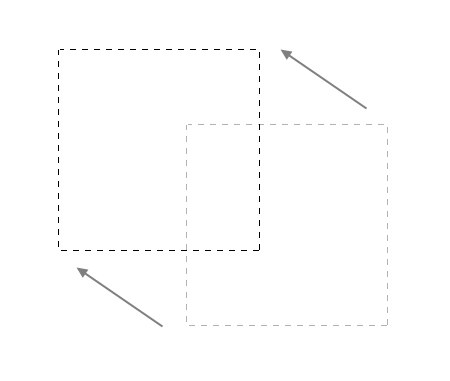
Drag a selection with the Marquee tool, but before releasing the mouse button, press and hold the Spacebar to relocate the selection.
Display larger font previews
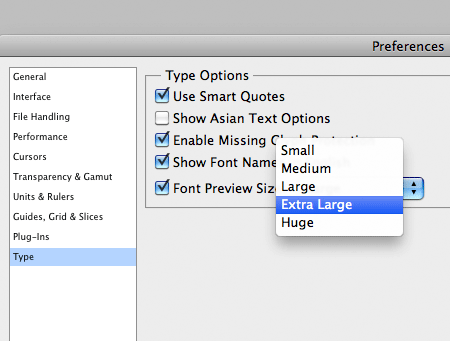
Go to Photoshop’s preferences and head down to the Type section. Change the Font Preview Size option to Extra Large to display legible preview on the font drop down menu.
Change values with the cursor keys
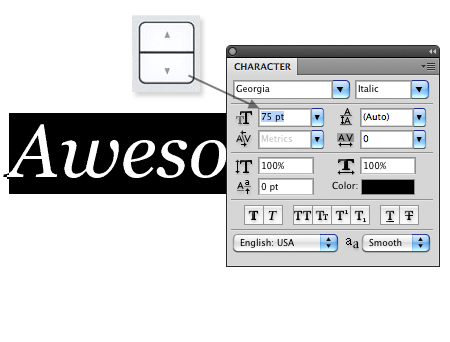
Rather than typing in an exact figure, simply nudge the numeric value up and down sequentially with the cursor keys.
Quickly zoom back to 100%
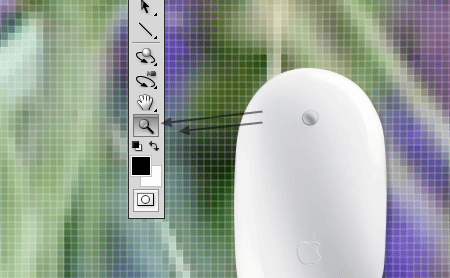
Double click the Zoom icon’s magnifying glass to jump back to 100%.
Toggle visibility of multiply layers
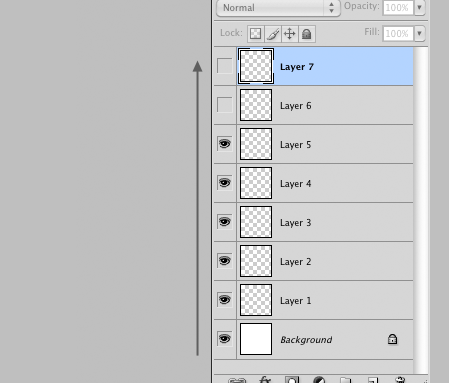
Click the ‘eye’ icon next to a layer to toggle the visibility on or off, then drag the selection down the palette to repeat the command on multiple layers.
Hide or show all other layers
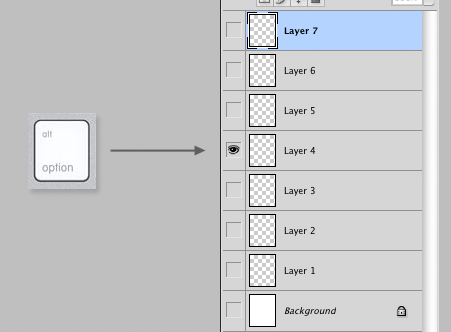
Press the ALT key while clicking the ‘eye’ icon next to a layer to toggle the visibility of all other layers.
Load the selection of a layer
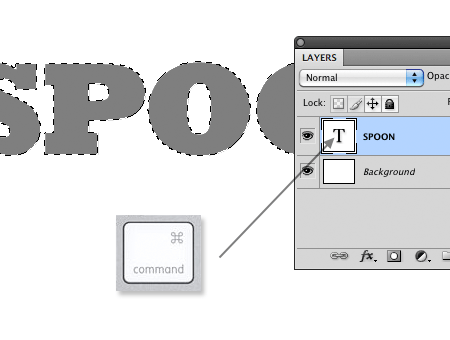
Press CMD while clicking the layer thumbnail to load a selection of the layer contents.
Quickly toggle between blending modes
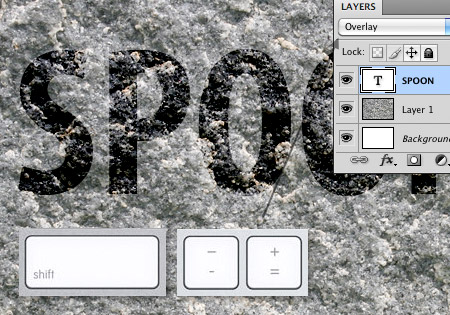
Windows users can simply toggle using the cursor keys, Mac users however can use the Shift key along with the plus and minus keys while the direct selection tool is active. Using this command while another tool is selected will change the blending mode option for that specific tool.
Toggle palette visibility
Increase the size of your work area by toggling off the palettes using the Tab key. Hover over the edges of the screen to bring back palettes, which will then disappear again when the mouse is moved away.
Fit to full screen
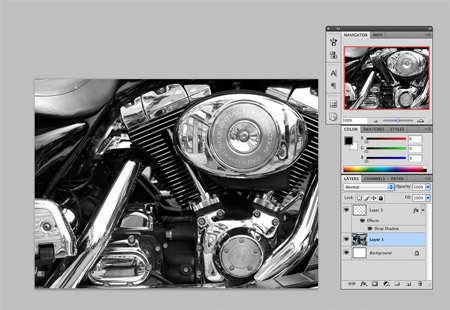
Another handy tip for Mac users. Cycle through various full screen modes by pressing the F key.
Switch to precision cursor mode
Press Caps Lock to turn on the precision cursor, useful for creating accurate selections. This also toggles off the brush outline, which can be handy for some occasions.
Increase and decrease brush size
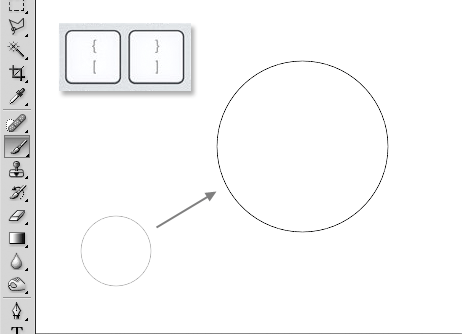
With the Brush tool selected, press the [ and ] keys to increase or decrease the brush size.
Rotate a Photoshop brush
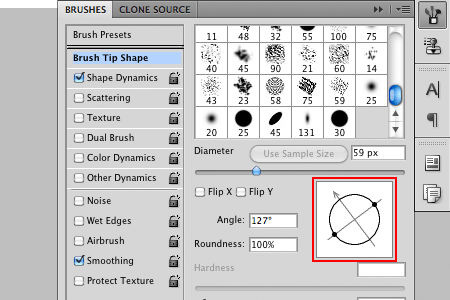
Head into the Brush setting, under Brush Tip Shape adjust the circular icon to rotate the angle of the brush.
Quickly adjust layer opacity
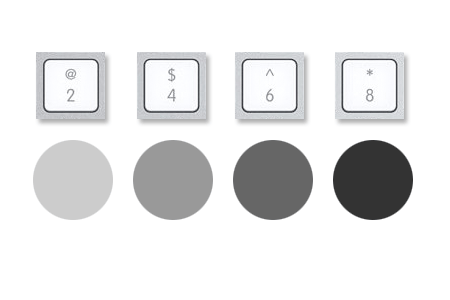
Select a preset opacity value by pressing the numeric keys from 1-10. Number one equals 10%, five equals 50% and so on.
Auto select layers or groups
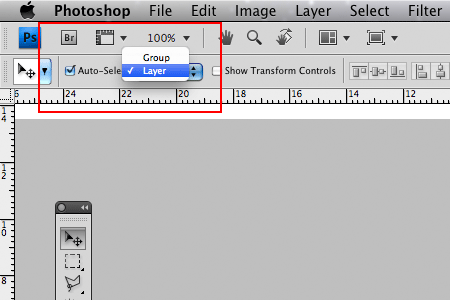
Select and adjust the selection settings to automatically select a layer, or a group. Or turn the option off to avoid accidental layer selection.
Automatically load files into layers
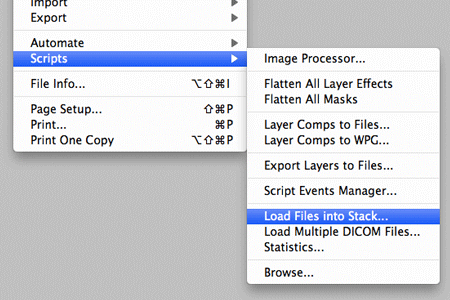
Go to File > Scripts > Load files into stack to open up a bunch of images and automatically place them onto individual layers.
Easily create new guides
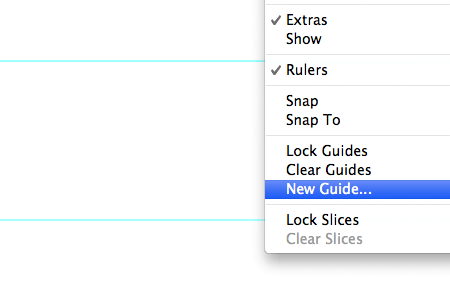
Click and drag a guide from the document rulers, or go to View > New Guide to drop a guide at a specific placement.
Change layer palette thumbnail sizes
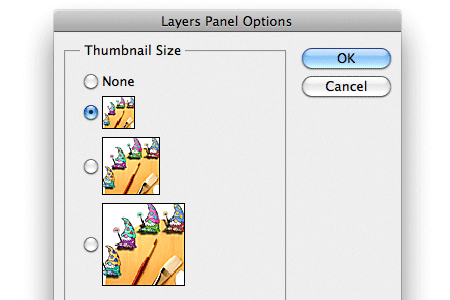
Click the small options arrow in the corner of the Layers Palette, then change the Layers Panel Options to alter the thumbnail size.
Copy multiple layers
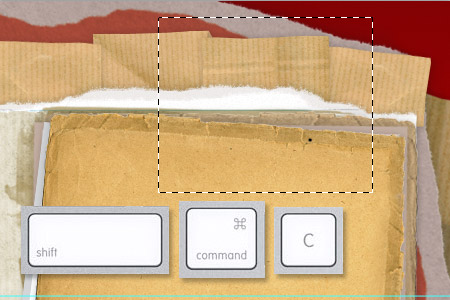
Draw a selection, then use the shortcut Shift+CMD+C to Copy Merged. This takes every layer into the clipping, rather than just the current layer selection.
Move items with super nudge
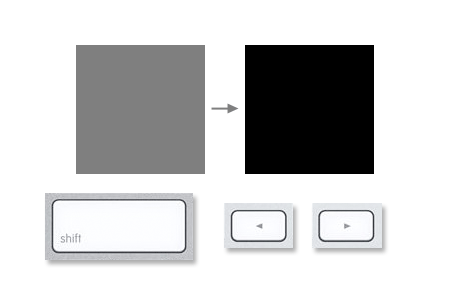
The cursor keys will nudge an object by 1px by default. Hold Shift while nudging to increase this to 10px. Especially handy when designing web layouts for consistent spacing.

Very nice tips.
Nice tips, but could you include the Windows-shortcuts as well? =3
Yea, that’s what I need too.
I’m glad to say, that i’m not completely alien to this tips!
Nevertheless, nice compilation – i found the “Toggle between Blend Modes” especially useful!
Nice list. All of these are pc compatible except for “Tab roll over option”, for the rest, simply click CTRL instead of command.
Also a very cool guide tip – press alt while dragging a guide to switch between horizontal and vertical.
In the quick layer opacity its important to know that “0” is 100, and you can quick press two numbers for a specific value.
Another cool shortcut – press Shift to cycle through tools in the tool bar. for example – press Shift+m to cycle through Square and circle marquee.
Double click the zoom icon for quick 100% zoom is cool, also try to double click the hand icon for quick fit-screen.
CTRL+{ or CTRL+} to quickly change layer position in the layer panel.
while using a brush, right click on working stage to open the brush option palette.
Shift+everything to make it ten times larger (for example – move an item one pixel with the arrows, move it ten pixels with shift, but also, click on any numeric text field to use the arrows for slow-change the value, shift+arrow will quick change it buy a value of ten).
Really cool list. Love the font preview one especially. Oh, and the selecting group or layer.
Thanks a million :D
Thanks for sharing Chris. The Windows keys might be useful for some early adapters.
Thanks for sharing these…
Here’s one :D Ctrl+Alt+z = going back through your history. Useful! (not sure what it is for a mac)
Command+Option+Z
The multilayer copy should help a ton, thanks Chris!
Yep, you were right. There were a couple of ‘Why didn’t I know of this before’ moments. :)
Great list Chris
Nice list. A few I knew, many I didn’t, but all are useful.
You missed the new essential productivity enhancer: “Don’t run Photoshop CS4 on Snow Leopard”.
Gotta go, the beach ball’s just stopped spinning …
;-)
>Here’s one Ctrl+Alt+z = going back through your history. Useful! (not sure what it is for a mac)
Cmd+alt+z
To move keyboard shortcuts from Mac to PC or the other way around it almost always works to just swap Ctrl and Cmd. They are kind of equivalent.
Just got a macbook pro and i didn’t know the “Quickly toggle between blending modes” for mac. fortunatly i knew all the others :)
Tnx for this one Chris
It’s a great tutorial. Thanks for this.
Nice, found a few on here that I didn’t know about.
This is definitetly useful. Thanks a lot.
Ah ha, the blend mode toggle and precision cursor are new to me. Very useful. Thanks.
big thanks for this tips.
Thank you for these! Very helpful!
Oh, and you forgot an “f” here that you might want to fix: “Copy multiple layers
Draw a selection, then use the shortcut Shit+CMD+C to Copy Merged.”
Thanks Chris didn’t know about the precision cursor using caps lock. Another one I discovered this week is: holding down SHIFT+[ ] with the brush tool selected changed the hardness of the brush too!
GENIAL!!!!!!!!!!!!!!!!
Thank you for those tips!
Very Useful!! Thanks a lot!
Thanks! :D
Awesome set, I hate to admit that I didn’t know about more than one of those.
I know them all but thanks for this post cuz I was getting to forget to use some of them. Really if the man learn this tips the working with PS get’s much more easy and fun. Congrats for the good article.
Nice List.
To zoom the image at its original size, rather than double clicking the magnifier, you can press CTRL+0 (or command + 0 on a Mac I guess?).
Pretty useful when you’re in fullscreen mode without any palette visible.
Thanks for your tips :)
PH
Nice List!
to zoom in our out: ALT + scroll up-down with mouse.
Ctrl-Spacebar: select what you want to zoom in to.
Ctrl-Alt-Shift-E: creates new layer from visible.
Ctrl+Enter: makes selection of current path (no need to ctr-click on path)
The last 2 I wasn’t aware of. All great tips
the spacebar trick isnt working for me in cs4
Nice set of tips, I’ve been trying to find a way of enlarging the font previews for ages, but now I know. cheers man.
really nice list thx 4 sharing ¡¡ ^^
Man, that was very nice, THX
hey~I translate these perfect tips into Chinese in my blog,thx for sharing
Although I use most of the tips, I did learn a few new great ones. I especially like the font previews and the move selection tip.
Thanks for sharing!
Great work buddy :)
Nice collection of truly useful photoshop tips!! Thank you for taking the time to put this list together!
AWESOME LIST!!
ps: but i can’t resize the brush size with those shortcuts…i’m european(porugal) anyone knows how can i do it??
Thank’s!! Great Post.
I particularly like the key shortcuts you describe for copying multiple layers
Shit+CMD+C
Quickly toggle between blending modes rulz!
Nice tips.
I knew only a couple of these and I thought I was an experienced user.
Thanks!
Fantastic Tutorial, Thanks for the time and effort. I’m learning alot from your tutorials.
Not sure if any one has said these yet, but to merge the layer you are on with the layer below, press CMND+E (CNTRL+E for windows) and to duplicate the selected layer press CMND+J (CNTRL+J for windows).
Shit+CMD+C
I love this key combo! Another helpful post, thanks Chris :-)
Nice tips :D ty spoon man :D
Great tips knew most of them but a couple are genius, I may print this out and stick it in the wall for a while :-)
Hey lovely stuff!
Anything to speed up my web design is much appreciated Chris, some cheeky one I never knew about, like the increase brush size with ” { } ” more tips please bet you could write a book on them!
I knew 90% of these but the 10% I didn’t are great to know! Any help in workflow is always a great time saver!
Thanks Chris
Thanks for all the great tips, there were some that I didn’t know and will definitely be using.
Tnx for ‘load into stack’, how I didn’t see it before I don’t know :)
Huge font previews! I love you.
great tip on Copy multiple layers – wow so useful – never knew that one
Omg the huge font previews are awesome! Thanks :)
Also worth mentioning: Space Bar for hand tool, and ctrl+, ctrl-, and ctrl0 to zoom in, out, and 100%.
For sizing type, there’s another great feature (on macs..I don’t know the PC equivalent):
With your type layer selected, simply hover over the font size box and hold down “Command” and drag left or right with the mouse. This increases (drag right) and decreases (drag left) the font in increments of 1. If you hold the “Option” + “Command” the increments are +/- .1 pt (1/10 of a point). And if you hold down “Shift” + “Command” the increment is +/- 10.
Great tips, mastering shortcuts like this can save you many hours over time! Thanks
The font preview is cool and awesome!
huh, thought i know all the shortcuts. these are gonna save me some time! thanks
awesome post! at least 3 of them I didn’t know and will come in handy! thx :D
You can also adjust brush size in CS4 by pressing Option + Control and dragging the mouse right to increase brush size and left to decrease brush size.
(Make sure brush tool is selected first)
Thanks for all the short cuts, I didn’t about half of them.
thanks for this post it was very helpful. This shortcut is also helpful to me: Apple+Alt+Shift+E makes a stamp of your work.
Thanks again
Brush size and layer opacity – awesome tips I didn’t know, real time savers. Great list.
Thnx for tips. It’s always useful to run through such articles.
Wow… feel lucky to find out that there was nothing new for me… am I Pro or its just that I know…?
Great tips Chris!
Some are new for me and will definitely improve my workflow
Thanks
Great tips! I’ve never been able to increase/decrease brush sizes with the bracket keys, though. I’ve tried every bracket, and it just doesn’t work on my Swedish keyboard layout. It’s annoying because I would *love* to use this keyboard shortcut — using the mouse to change brush sizes is a major pain. Has anyone heard of this before or know how to fix it?
Oh…I love them all, but most especially, the super large font previews…thank you!
OMG! Now I know how that precision cursor happens to keep appearing when I’m working, I now know how to turn it off :D
Thank you for the ‘load into stack’ command, very useful and sometimes save a lot of time;)
A great set, might be the most useful thing I read all day.
Some very helpful tips. Thanks a lot!
You’re the man!
This has been one of the most useful posts I’ve read in a long time. Great work.
9/20, not too bad for me ;)
Thanks for the tips. They are going to be timesavers for sure!
O MY GOD! I have been using photoshop for 3 years and would consider my self preficient…But I have not know about half of these until now! Thanks so much, Im sure this will increase my work flow!
Great set, some things that I could have used forever now, but light they always say better late than never.
Huge font previews! I love you.
Thank you A LOT! It’s very very useful!